
Hey, What's up, Welcome back to another very exiting tutorial by Ciemasen. Today we are going to be take a look at creating app service in azure. Hope you enjoyed the previous article on How to configure Sonar with Azure DevOps. If you missed the previous article, we suggest you to have a look on that first.
Overview
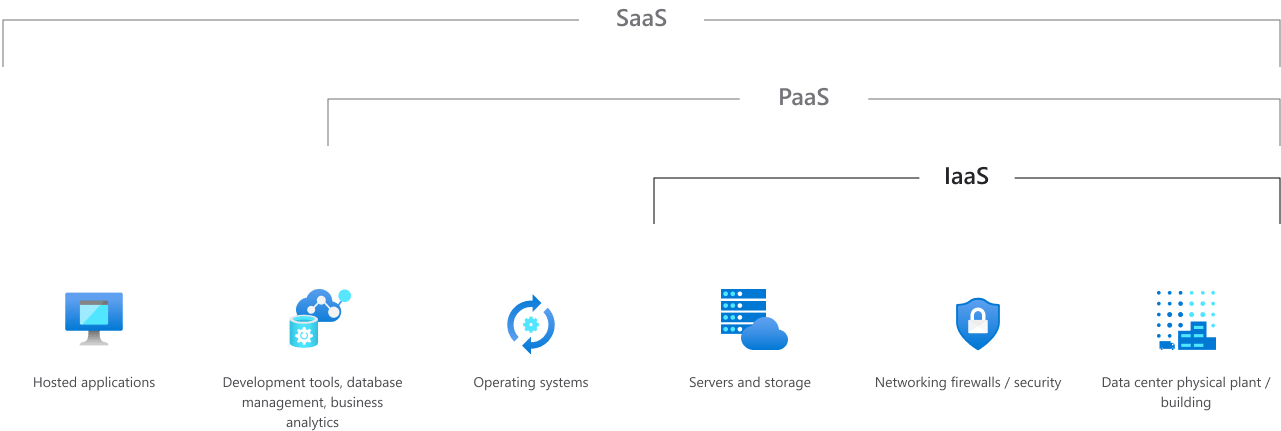
Azure is the Microsoft's cloud computing platform. Microsoft azure provide a range of cloud computing service s including compute, storage, and networking. these cloud services are mainly categorized into four different types such as Infrastructure as a service (IaaS) software as a service (SaaS) platform as a service (PaaS) and serverless
Getting started
In this article we are going to create an azure web app which allows us to deploy our custom code and access it in public internet with some easy steps.
Azure web app is an azure app service which is belongs under platform as a service. So azure take care of the infrastructure to run the application.
Lets get started with creating the application. Fist we need to log in to the azure portal with a valid account.
Create subscription
An Azure subscription is a logical container used to provision resources in Azure.
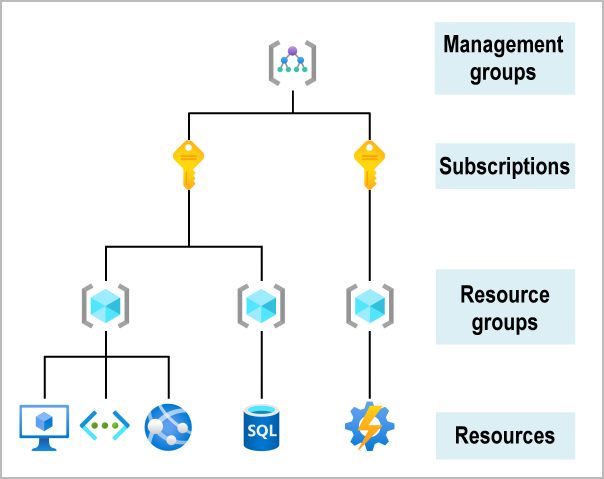
So in order to create any resource in Azure you need to have a valid subscription. Lets navigate to azure portal and sign in to the account. lets go ahead and create an azure subscription with follwing steps
Sign in to the Azure portal.
Search for Subscriptions.
Select Add.
Fill the details and click Create
Create resource group
A resource group is a container that holds related resources for an Azure solution. The resource group can include all the resources for the solution, or only those resources that you want to manage as a group
Sign in to the Azure portal.
Select Resource groups
Select Add.
Fill the details and click Create
Create app service
Sign in to the Azure portal.
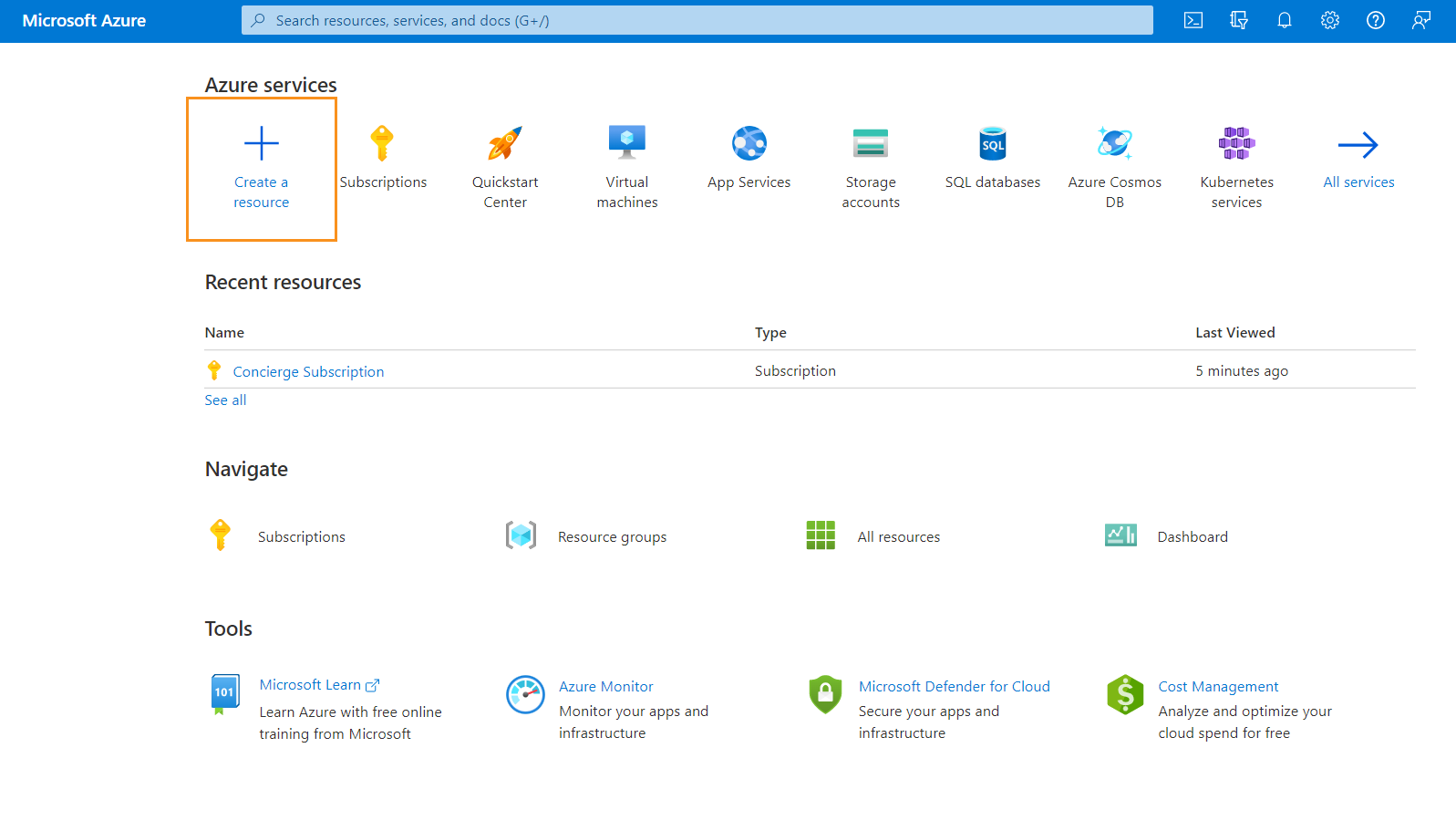
Click on create new resource
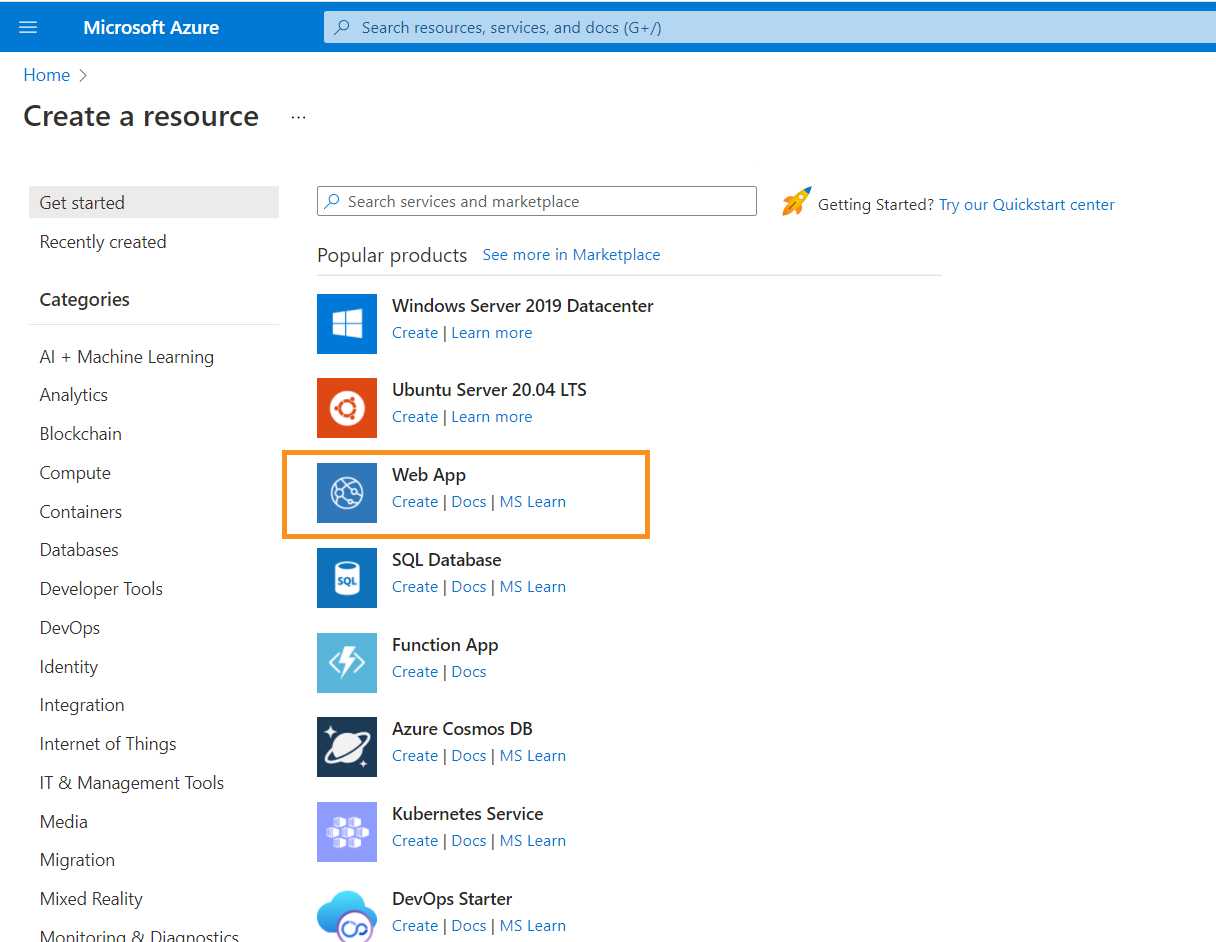
Select Web app
Fill the details and click Create
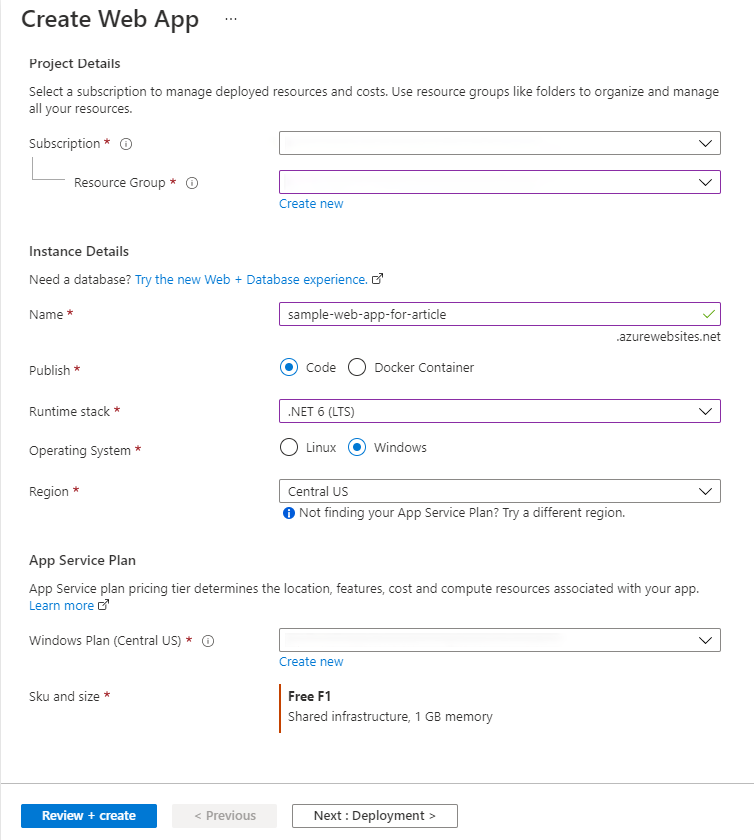
then you can review the settings and create app service
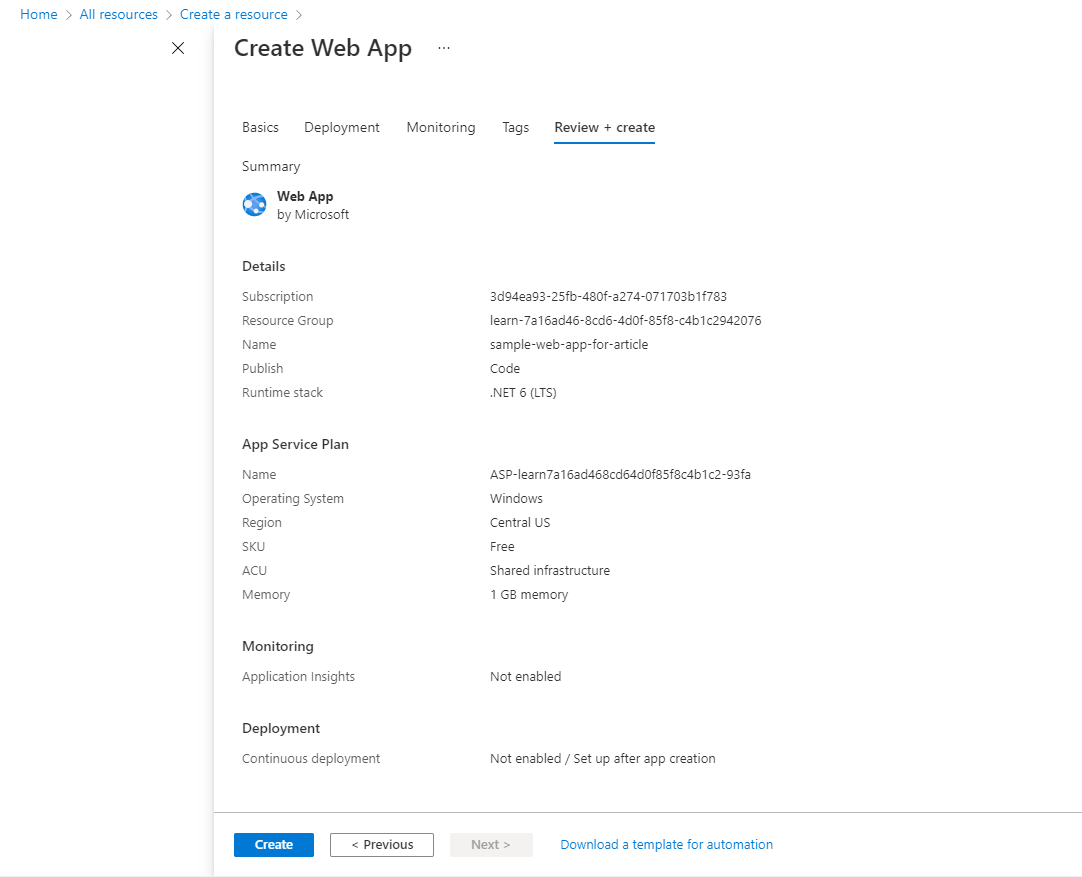
lets navigate to all resource and there we can see our very first web app is available.
click on it and it will shows the details of the web app we created.
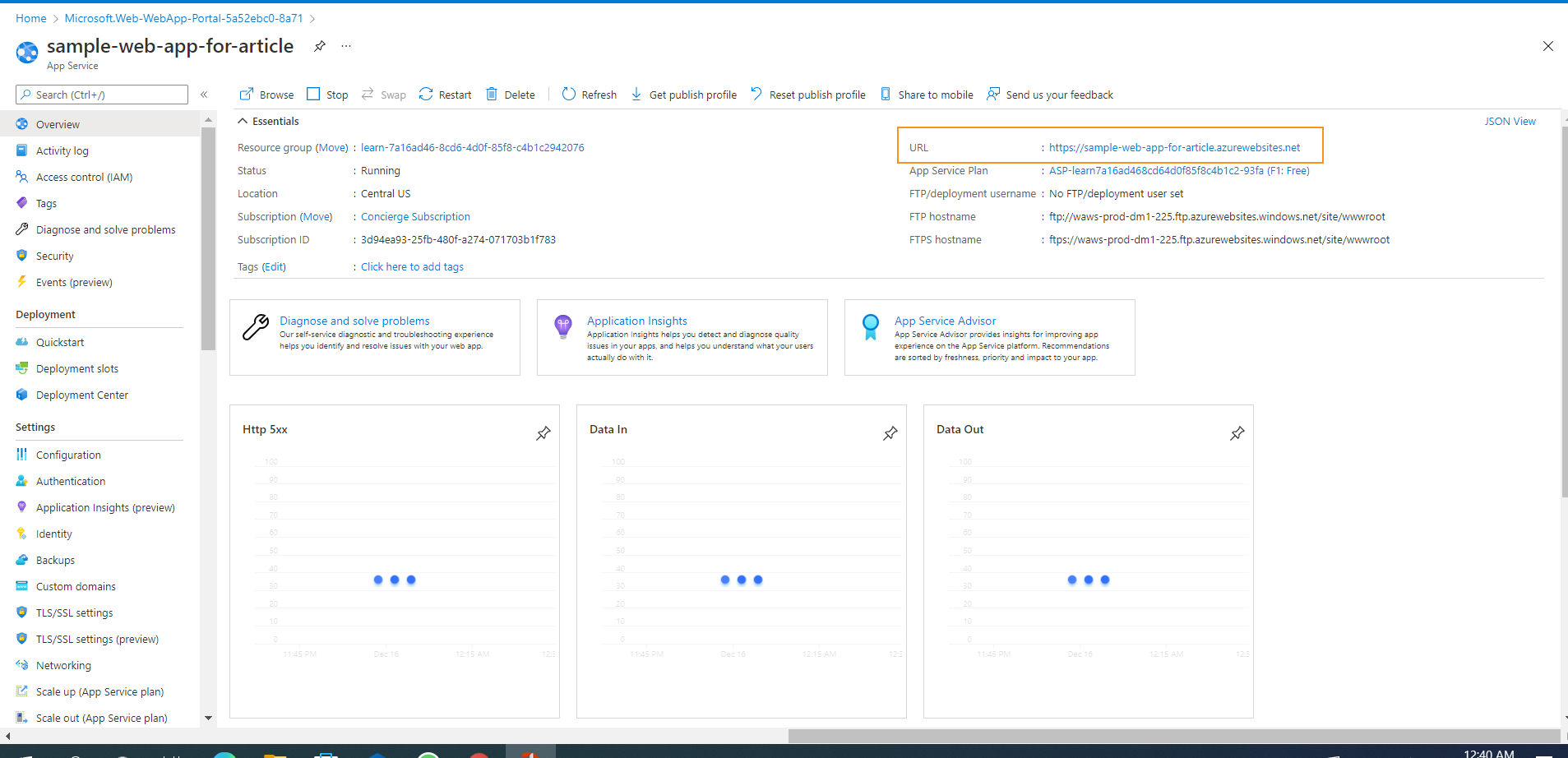
Click on the url that will navigate to the public view of the application.
Now we are ready with the web app and we can use this to deploy the custom web apps.
Hope you enjoy the tutorial and see you soon in another very exiting tutorial